- Right click on your chrome shortcut on your desktop, taskbar, wherever, and edit the properties.
- Under the target field add this after the \chrome.exe: -purge-memory-button so it reads"\chrome.exe -purge-memory-button" then close and re-open chrome.
Add Purge Memory Button to Chrome Task Manager
Friday, September 2, 2011
Mark Kull provides a neat little trick to help us manage our memory when running Chrome;

Google Reader Full Feed - Chrome Extension
Saturday, April 24, 2010
Google keeps rolling out extensions for their Chrome Browser. I'd like to share one that converts many truncated feeds to display the full feed in your Google Reader. It doesn't work on all truncated feeds ( I'm not sure why ), but it does work on many of the feeds I subscribe to. I used Reuter's news feed as an example that does work.
I really don't enjoy, or subscribe to many sites that truncate their feeds, but make exceptions when the site has quality content and isn't likely to bombard me with pop-ups and highly intrusive or distracting ads when I navigate to their page.

The first image ( above ) shows how Reuters appears in Google Reader. The second image ( below ) shows how this same truncated feed is expanded in Google Reader to display more of the item. Notice the little orange icon just to the right of the title link? That icon indicates that this item can be expanded by pressing the 'z' button on your keyboard. It's that easy.

This extension is available at Google Chrome Extensions. It's free, and easy to download. There are comments on that page that express the feelings of others that have downloaded this extension. Some are not positive. I find that this extension works well in my version of Chrome ( 4.1.249.1045 ).
Let me know if you try this, and tell me how it works for you. Please include the version of your Chrome Browser in comments.
The Chrome OS Beta is a Fake, Don’t Download | WATBlog.com - Web, Advertising and Technology Blog in India
Wednesday, October 28, 2009
The Chrome OS Beta is a Fake, Don’t Download | WATBlog.com - Web, Advertising and Technology Blog in India: "If you read this like right now and head to Twitter and search for Chrome OS, you'll find over a 100 tweets getting updated by the second that Google has released a Beta Version of its Chrome OS."
Google Chrome 2.0.172.33 Released
Monday, June 22, 2009
Google Chrome 2.0.173.33 has been released to the Stable and Beta Channels;
Download; Google Chrome 2.0.173.33 This release fixes several serious security bugs.
Bookmarklet for friendfeed - Improved
Friday, May 1, 2009
Friendfeed has a great 'share' feature, that allows users to highlite and post text as well as pictures from visited pages to any of their Friend Feed groups, or main feed. This bookmarklet has the unique feature of being 'drag-able'.
That is to say you can drag the pop-up window to any place on your screen. This is good, because some pics are located in the top-right area of a page, and the standard Friedfeed bookmarklet covers that area and prevents the user from highliting the pic or text.
Drag this to your Chrome Bookmark bar; Share FF
That is to say you can drag the pop-up window to any place on your screen. This is good, because some pics are located in the top-right area of a page, and the standard Friedfeed bookmarklet covers that area and prevents the user from highliting the pic or text.
Drag this to your Chrome Bookmark bar; Share FF
Drag and Drop URLs in Google Chrome Browser
Sunday, April 5, 2009
If you click on the URL in you Google Chrome 'omni-bar', you can drag it to your Bookmarks bar! Bookmarking couldn't be simpler. If the page you're Bookmarking has a symbol displayed in the omni-bar, the symbol goes with the Bookmark! Wow....
Now right-click on the Bookmark, and look in the pop-up window for 'edit'. You can edit the name of the Bookmark ( don't worry, it won't affect the function ).
Right-click on the Bookmarks bar, and look for 'add a folder'. You can create a folder to organize your Bookmarks! You can even put folders within folders ( file them in a way that's most logical for you, that will make it a lot easier to find them later ).
And here's something really good; you can drag URLs from your Chrome Browser window to the Bookmark bar too! That includes those great little java-script marklets that add so much value the fastest Browser available. Do you use Google Reader? Drag this to your Bookmark bar;
If there is a rss feed available for the page you're viewing, this little marklet will find it, and redirect you to your Google Reader.
New beta for Google Chrome
Wednesday, March 18, 2009
From the Google Chrome Blog;
Tuesday, March 17, 2009 | 10:00 AM
"...Since we took the "beta" tag off Google Chrome in December, we've been updating two release channels: developer and stable. With our latest release, we're re-introducing the beta channel for some early feedback — and if you're reading the brand new Google Chrome blog, you are probably just the person to give it a try...more..."I will be downloading, and testing the new beta release, and will update as time permits. Let me know if you have any problems or suggestions.
Thank you;
Wallace
Deleting Direct Messages on Twitter
Saturday, March 14, 2009
Here is a little marklet that deletes Direct Messages (DM) on Twitter. Just 'drag and drop' the red text below to your Google Chrome Bookmarks bar
Delete DMNavigate to your Twitter Direct Messages page, and then click-on the marklet. Your side-bar should display instructions that will allow you to delete all, or selectively delete Direct Messages from Twitter contacts.
If you use this marklet, be so kind as to comment here ( or on my Twitter page ). I'm especially interested in whether deleting DMs affects the 'updates' count on a members page.
Bookmarklets for Google Chrome's tool-bar
Saturday, February 14, 2009
Bookmarklets are an asset to any browser, and I use these two a lot. I found these at Chrome Plugins, so it would be good to keep an eye on that site for more tips and tricks. They made it so simple;
Just Drag-and-drop the red links below to your browser bar!
If you use Google Reader like I do, you probably know about 'sharing with notes'. You can share items from within your reader, or with this marklet you can highlite anything on a web-page and share that portion. This marklet activates a pop-up window with some great features, the one I like the most is being able to 'tag' the item so that you can publish it as a unique rss feed.
Share with Note in Google Reader
Here's my 'tagged' feed ( Exploring Google Chrome ) that I 'share' via the marklet above.
If you use FriendFeed, here's a marklet that allows you to post from any web page. Again, you'll get a pop-up window with instructions. Highlited text will be posted but there's something special about this pop-up! You can post photos from any page directly to FF!
Share on FriendFeed
Remember to check with Chrome Plugins often, they really know a lot!
Google Chrome ( incognito ) Not Cool Enough For Facebook
Sunday, February 1, 2009
If you're trying to visit Facebook with Google Chrome in the incognito mode, you will see this image;

Google Chrome Update Available
Thursday, January 29, 2009
Google Chrome update available, Chrome users need to click on 'About Google Chrome' ( under the wrench, at the top/right of your Google Chrome browser ).
 A pop-up similar to the one above will appear on your browser screen, and the user will be prompted to check for updates. After about a minute of checking and updating the user will be prompted to close, and restart their Chrome Browser to finish the installation.
The process takes less than two minutes. This release includes two security updates. The release notes will have a full list of changes.
Three Processing Modes
Monday, January 19, 2009
Behind the scenes, Chrome can run in three processing modes. The most efficient of these is single process mode. To use this mode, open Chrome's properties in the Start menu and add the string '-single-process' (without the quotes) to the end of the Target box. Now, no matter how many tabs you open, the browser will use just one process.
If you add the string '-process-per-site' to the Target line, Chrome will open a new process for each tab, but if you open the same site in two tabs, it will run them on the same process. The string '-process-per-tab' will force Chrome to create a completely new process and use a new memory space for each tab, which is its default.
Thanks Tech Radar!Are You Ready For Chrome?
Friday, December 5, 2008
You've been reading about the Chrome Browser, down-load it now! It's free, east to install and probably the most flexable tool Google has in it's package.
From the moment Google's Chrome Browser was first offered, the rest of the tech world has been playing catch-up, and follow the leader. The first reviews of Chrome were appropriately skeptical and critical, and the best minds in the business got busy testing the new Browser looking for strengths, weaknesses and making suggestions. They found a lot of strengths, a few weaknesses and made a lot of suggestions that Google picked up on quick.
When you've down-loaded the ultra-lite package, check out all the tips and tricks I've been 'tagging' as I follow the developers in my Google Reader. Extensions and Add-ons are expected very soon, so be ready, and take full advantage of the latest great developments. Down-load it today!
Check back here in the next few days for up to the minute reports and reviews by the folks who love to push a new tool to it's limits.
Chrome's Keyboard Shortcuts
Thursday, November 27, 2008
- (Chrome only) Ctrl+B toggles the bookmarks bar on and off.
- (Chrome only) Shift+Escape opens Google Chrome's Task Manager.
- Ctrl+L to move your cursor to the address bar.
- Ctrl+K moves your cursor to the address bar to enter a Google search.
- Ctrl+T opens a new tab.
- Ctrl+N opens a new window.
- Ctrl+Shift+T opens the last closed tab.
- (Chrome only) Ctrl+Shift+N opens a new window in "Incognito Mode."
- Ctrl+Tab cycles through open tabs; Ctrl+Shift+Tab reverse cycles through open tabs.
- Ctrl+J opens the Downloads tab.
- Ctrl+W closes the current tab.
- Ctrl+R refreshes the current page.
- Ctrl+H opens the History tab.
- Alt+Home loads your homepage.
- Ctrl+1 through 9 switches to a particular open tab position.
- Ctrl++, Ctrl+-, Ctrl+0 Enlarges, reduces, and restores default text sizes, respectively.
Third Chrome beta released
Thursday, October 30, 2008

Google has released a new update for the Chrome Browser ( 0.3.154.3 ). Read a great article about the update at Webware.
Chromium Developer Documentation has the details at Release Notes 0.3.154.3
If you don't use Google Chrome, and want to check it out, follow this link to a free download. It's quick, easy and you won't be sorry.
Bookmark Tree in Google Chrome
Saturday, September 13, 2008
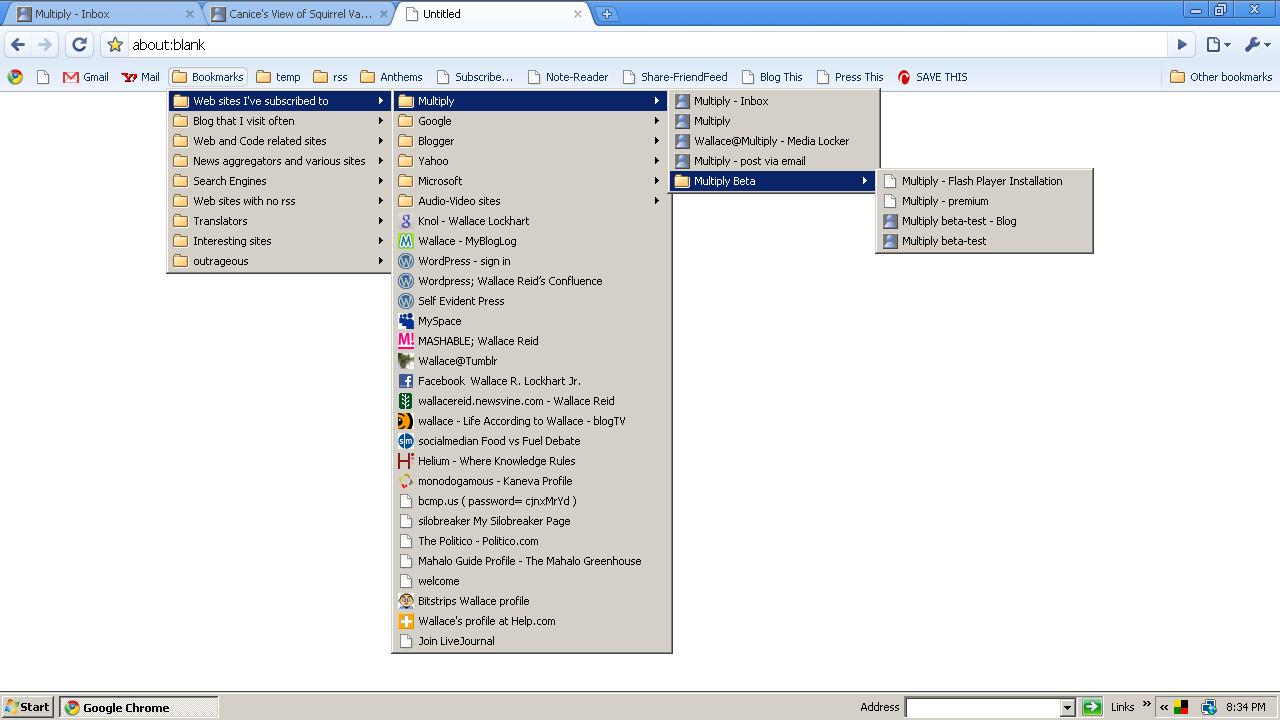 When you import Bookmarks from Internet Explorer, they will appear in alphabetical order. No problem. You can use the flexable bookmark editor to organize your bookmarks however you like. Unlike IE, Chrome allows you to drag-and-drop your bookmarks to folders that you create in the editor. You can see this pop-up editor in the previous post; Editing Bookmarks in Google Chrome.
If you right-click on any link in the bookmark tree, a pop-up window will offer more options for editing that link.
Bookmarks - Editing in Google Chrome
Manual Bookmarking
When you find an interesting page that you would like to 'Bookmark', just click on the star on the left end of the 'Omni-bar'. ( click on images below for larger view )

A small pop-up window will give the option to name the bookmark, and also where to place it.

Type the name of the page in the upper window ( abbreviations are ok ), and choose a location in the lower window. You can put your Bookmark on the Bookmark Bar, in an existing folder or create a new folder ( note; you can create a folder within a folder ).
Click on the 'edit' tab. Another small pop-up window will display the 'Bookmark Tree'.

The tree's root is the Bookmark Bar, and the branches are various folders and sub-folders you've created. This pop-up Window is very much like the Windows Explorer side-bar menu that most people are familiar with. Feel free to drag-and-drop the Bookmarks to any folder on the tree, or place it between any existing Bookmarks on the tree.
You can also create new folders in this window by clicking on 'New Folder'. When your satisfied as to the name and location of the Bookmark you'd like to save, click on 'OK'.
Importing Bookmarks Automatically
Click on the little wrench at the top right of your Chrome Browser. Click on the 'Import Bookmarks and Settings' tab in the drop-down menu. Follow the simple instructions.
When I imported my Bookmarks, I noticed that my Yahoo, Microsoft, and several other Folders filled with Favorites came organized in there original tree configuration, but rather scattered on the alphabetical list. I was disappointed to find that none of my rss feeds were imported.
Notice; In the image below my Bookmark bar has several folders ( colored yellow ) and several book marklets ( colored white ) that I've mounted from my Google Reader, Wordpress, etc. All of my Bookmarks are in the Folder that I named 'Bookmarks', and organized in a tree built manually from the alphabetical list that Chrome imported from my Ineternet Explorer.

Subscribe to:
Posts (Atom)

 Posts
Posts


